Modern Digital Group
Your connected space for what matters.
Opening Modern Digital Group…
Modern Digital GroupYour connected space for what matters.
Opening Modern Digital Group…
Modern Digital GroupYour connected space for what matters.
Opening Modern Digital Group…
Modern Digital GroupOpen SoloDrop on the devices you want to use, then choose the right room for the transfer. MDG sign-in opens the private-room workflow; the app also offers a public room.
Open the browser app on each device. Review the room, recipient and expiry shown before sharing.
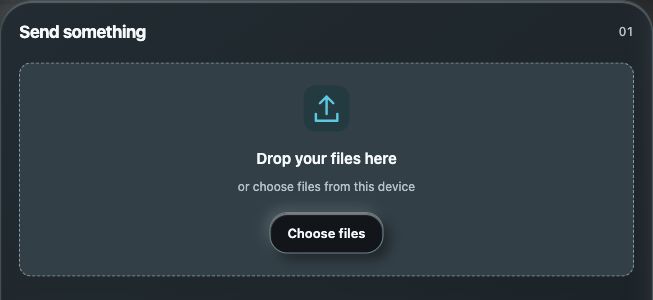
For people moving files between their own devices or an intended recipient.
How it worksMove files between Windows, Mac, iPhone and iPad through a shared room.
Open SoloDrop from supported desktop and mobile browsers to prepare a transfer.
Use the public room when appropriate or sign in with MDG to create a private room.
Review who is joining and use the app’s approval and expiry controls. A transfer room is a handoff, not a permanent file archive.
Open the browser app on each device. Review the room, recipient and expiry shown before sharing.
Explore the rest of MDGOpen SoloDrop on the sending and receiving devices.
Choose the room and confirm the intended recipient.
Send the files and check the transfer result in the app.
The app’s current availability and your account’s access still apply.
Use your MDG sign-in for the private-room workflow. The app also has a public room.
No. Keep a separate saved copy of important files. Transient rooms and transfers are not long-term backup storage.
Start with your existing MDG sign-in. Connected apps keep their own records, device requirements and access rules. A shared sign-in does not combine every project, plan or paid feature.
Open the browser app on each device. Review the room, recipient and expiry shown before sharing.
Introduce yourself, share your work and make the next connection easier.
Bring supported public media into your local creative workflow.
Create graphics, covers and visual layouts in a dedicated creative space.